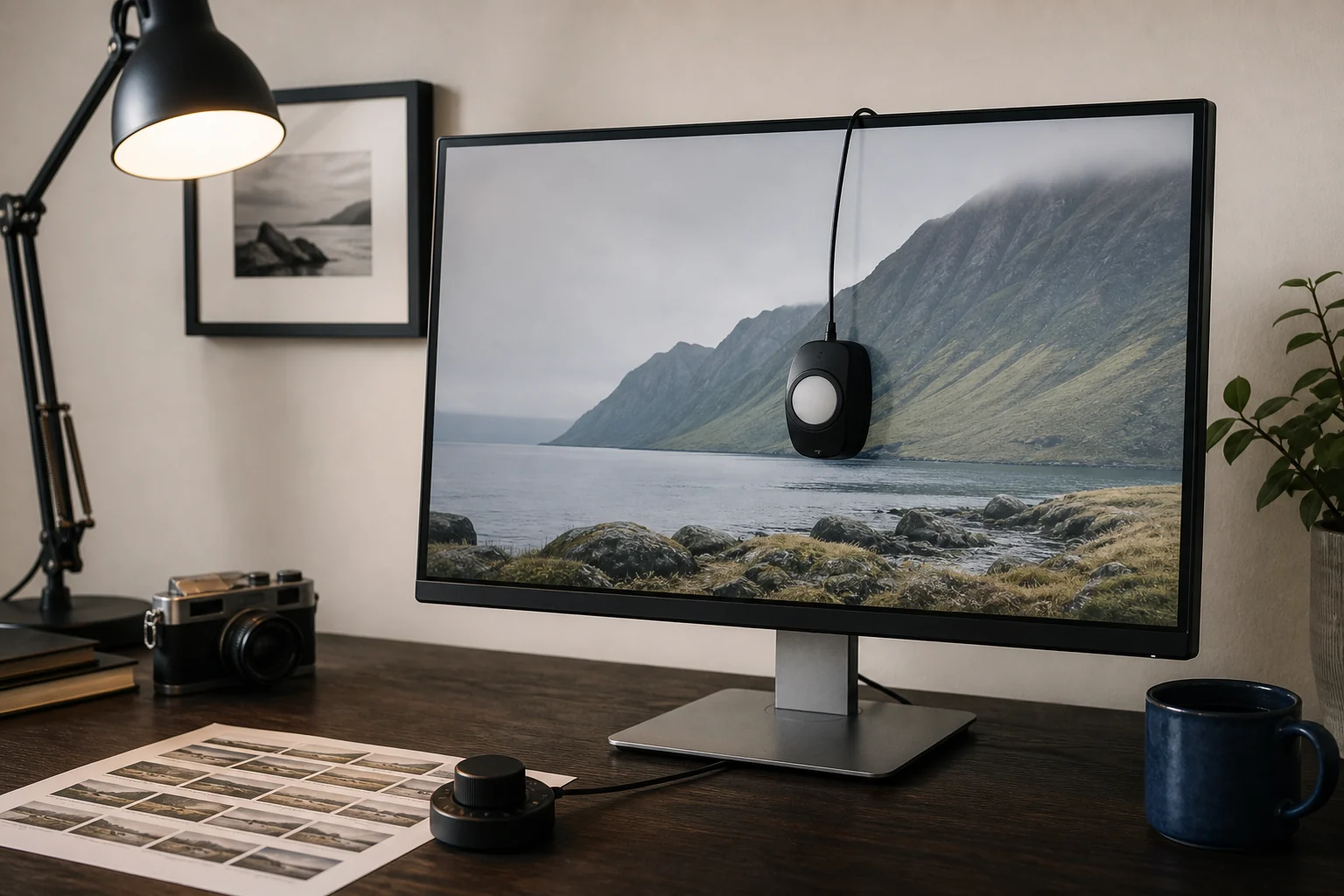
A good budget monitor for photo editing should make color decisions more dependable, not merely make photographs look vivid. For most U.S. photographers, the ASUS ProArt PA279CRV is the best balance: 27-inch 4K IPS, broad published gamut coverage, factory calibration, 96W USB-C charging and a three-year pixel-conscious warranty for about $400 to $430.
The BenQ PhotoVue SW242Q gives print-focused photographers true hardware calibration and excellent Adobe RGB coverage in a smaller 16:10 format. ViewSonic and LG cover lower-cost creator workflows; Dell, MSI and Gigabyte suit buyers who also value contrast, high refresh rates or a KVM switch.
Every monitor here cost less than $600 when checked on August 27, 2026. A sale price can change overnight, and no factory claim removes the need to profile the individual screen used for paid or print-critical work.
What monitor specifications do—and do not—show
Manufacturer percentages are not automatically comparable: some describe coverage, others volume, and measurement standards differ. Treat them as published claims unless an exact-model measurement supports them. Factory calibration, software profiling, and true hardware calibration are also different tools, not interchangeable labels.
Selection criteria for affordable computer monitors
For a monitor below $600, start with native resolution and pixel density, panel type, sRGB and wider-gamut coverage, factory calibration, and support for an external colorimeter. Then compare ports, USB-C power delivery, warranty length, and the cost of adding that meter. A fast refresh rate or gaming feature matters only after the display clears the basic photo-editing requirements.
The best budget monitors for photo editing at a glance
| Monitor | Best for | Key published facts |
|---|---|---|
| ASUS ProArt PA279CRV | Best overall | 27-inch 4K IPS; 100% sRGB, 99% Adobe RGB, 99% DCI-P3; 96W USB-C; $399–$429; 3-year warranty |
| BenQ PhotoVue SW242Q | Print and Adobe RGB | 24.1-inch 2560 × 1600 IPS; 99% Adobe RGB; 90W USB-C; KVM, SD reader, hardware calibration; about $411–$480; 3-year warranty |
| ViewSonic ColorPro VP2756-4K | Web and sRGB editing | 27-inch 4K IPS; 100% sRGB; 60W USB-C; about $350; 3-year warranty |
| LG UltraFine 27UP850K-W | Low-cost USB-C 4K | 27-inch 4K IPS; up to 95% DCI-P3; 90W USB-C; about $350; 1-year warranty |
| Dell UltraSharp U2724D | Better IPS contrast and 120Hz | 27-inch QHD IPS Black; 98% Display P3; no USB-C video or laptop charging; $415–$440; 3-year exchange warranty |
| MSI MAG 272URDF E16 | Photo editing plus fast gaming | 27-inch 4K Rapid IPS; 88% Adobe RGB claim; 4K/160Hz or FHD/320Hz; no USB-C; $270 sale; 2-year warranty |
| Gigabyte M27UP | Two-computer KVM setup | 27-inch 4K IPS; 95% DCI-P3 claim; KVM and 18W USB-C; $330–$380; 3-year warranty |
The gamut figures in this table are manufacturer claims. Independent samples sometimes differ, particularly on the Dell and Gigabyte, which is why a colorimeter remains part of a serious budget.
Why color accuracy matters on a budget monitor
An inaccurate screen can encourage the wrong edit. If the display is too cool, a photographer may warm the file unnecessarily. If it exaggerates saturation, the exported image can look dull elsewhere. Excessive brightness is a common cause of prints arriving darker than expected. These problems are not fixed by having more pixels or an HDR logo.
Three ideas help separate useful specifications from marketing. Gamut is the range of colors a display can reproduce. Full sRGB coverage is the practical baseline for websites, social platforms and most general delivery. Adobe RGB matters more for photographers working with capable inkjet printers and print labs, especially in cyan-green colors. Display P3 and DCI-P3 are useful for modern screens and video, but the two P3 spaces use different white-point conventions.
Accuracy describes how closely displayed colors meet a target. A published average Delta E below 2 is encouraging, but the formula, mode, brightness and test patches all affect the result. Uniformity describes whether the center and corners behave alike. A perfectly measured center cannot correct a visibly warmer or darker edge.
Factory calibration is a helpful starting point, not a lifetime guarantee. Panels drift, room lighting changes and two units of the same model can differ. For paid work, printing or cross-display matching, reserve money for a compatible colorimeter and use color-managed applications.
Top 7 budget monitors for photo editing
The ranking starts with purpose-built creator displays and then moves into useful mixed-workflow options. A color-accurate monitor for print work needs different strengths from a 4K monitor for photo editing, office use, and gaming, so each pick has a specific buyer rather than a universal claim.
1. ASUS ProArt PA279CRV — best budget monitor for photo editing overall
The ASUS specification sheet gives the PA279CRV the strongest all-around specification set under $500: 27-inch 4K IPS, 163 pixels per inch, 100% sRGB and 99% each of Adobe RGB and DCI-P3. ASUS factory-calibrates it to a claimed Delta E below 2, includes the individual calibration report and lists Calman verification. Presets cover sRGB, Adobe RGB, DCI-P3, Rec.709 and other working spaces.
One USB-C cable carries video, data and up to 96W of laptop power. Two HDMI 2.0 inputs, DisplayPort input and output, three USB-A ports and downstream USB-C make an effective dock. The stand offers full ergonomic adjustment.
Independent measurements support the broad-gamut claim without making the screen sound perfect. PCWorld measured 100% sRGB, 99% DCI-P3 and 98% Adobe RGB, plus an accurate 6500K white point and 2.2 gamma. Its sample's color-error result was less impressive relative to competing creator monitors, so an external profile is still sensible for critical work.
Strengths: exceptional gamut-to-price ratio, sharp 4K workspace, useful presets, strong laptop connectivity and a compact stand. ASUS listed it at $429, while Newegg listed it at $399 when checked.
Tradeoffs: this is factory-calibrated, but ASUS does not list internal-LUT hardware calibration for the model. Its ordinary edge-lit IPS panel also has limited black depth. PCWorld measured about 930:1 contrast and found its DisplayHDR 400 performance unconvincing. Treat HDR as compatibility for previews, not as a reference workflow.
The ASUS U.S. warranty runs three years. For non-OLED PA models it also specifies zero bright dots and no more than five dark dots during that period, an unusually clear policy at this price.
2. BenQ PhotoVue SW242Q — best budget monitor for printing
The SW242Q is the specialist here. Its 24.1-inch 16:10 IPS panel is smaller than the 27-inch alternatives, and 2560 × 1600 is not 4K, but the taller format and 125-ppi density provide a useful editing canvas. More importantly, BenQ publishes 100% sRGB, 99% Adobe RGB and 98% P3 coverage, average Delta E of 1.5 or less, a 16-bit 3D LUT, panel-uniformity correction and true hardware calibration.
The monitor stores three calibration targets and works with BenQ's AQCOLOR Pilot and supported meters. Paper Color Sync, Adobe RGB and black-and-white modes suit print preparation, while the nano-matte coating reduces reflections during soft proofing. There is no built-in sensor, so hardware calibration still requires a separate instrument.
Ports include 90W USB-C with video and data, HDMI 2.0, DisplayPort 1.4, two downstream USB-A ports, USB-B, an SD card reader and a KVM switch. That is a better photography workflow than many larger general-purpose monitors. PCWorld's independent review found excellent gamut and color accuracy, with a 6400K default white point and accurate 2.2 gamma.
Strengths: the most complete color-management system in this list, excellent Adobe RGB coverage, useful print tools, single-cable laptop operation and an SD reader.
Tradeoffs: PCWorld measured only 980:1 contrast and noted visible IPS glow; HDR10 support does not make it a credible HDR display. The small screen and 60Hz refresh rate also feel expensive beside 27-inch 4K competitors.
U.S. inventory was uneven when checked: BenQ maintains an active U.S. page and a specialty retailer listed new stock around $411, but a major photo retailer had stopped carrying it. Confirm seller authorization and U.S. coverage before ordering. BenQ's terms give new monitors three years of U.S./Canada coverage and provide inbound warranty shipping, but not replacement packing material.
3. ViewSonic ColorPro VP2756-4K — best 4K monitor for sRGB work
The ViewSonic is a sensible choice for photographers whose work ends on websites, client galleries and standard-gamut office displays. Its 27-inch 4K IPS panel is factory calibrated, Pantone Validated and rated for 100% sRGB, Rec.709, EBU and SMPTE-C with Delta E below 2. USB-C carries video, data and 60W of power; two HDMI inputs, DisplayPort, a two-port USB-A hub and a fully adjustable stand complete the setup.
Its limit is equally clear: this is not a wide-gamut print monitor. ViewSonic's detailed specification lists 78% Adobe RGB and 80% DCI-P3 coverage—suitable for sRGB delivery, not full Adobe RGB or P3 editing.
PRAD's instrumented review found the factory grayscale nearly ideal at 6500K and measured 98% sRGB coverage in the preset. After calibration and profiling, its sample averaged Delta E94 0.45, while reaching 99% sRGB, 73% Adobe RGB and 76% DCI-P3. Those results reinforce the monitor's narrow but useful purpose.
Strengths: sharp 4K resolution, dependable sRGB mode, factory report, 60W laptop connection, good ergonomics and an authorized-dealer price of about $350.
Tradeoffs: limited Adobe RGB and P3 coverage, 60Hz motion and an older button-driven menu. It supports external profiling, but does not offer the BenQ's internal-LUT hardware calibration.
ViewSonic specifies a three-year warranty covering parts, labor and backlight, subject to its pixel and service terms.
4. LG UltraFine 27UP850K-W — best affordable USB-C 4K monitor
The LG fits photographers who want a clean 4K laptop desk for less than the ASUS and can calibrate it themselves. The current U.S. model combines a 27-inch 3840 × 2160 IPS panel with up to 95% DCI-P3, DisplayHDR 400 and a height-, tilt- and pivot-adjustable stand. An authorized U.S. listing confirmed two HDMI inputs, DisplayPort and USB-C with 90W Power Delivery at about $350.
LG's support page provides LG Calibration Studio for this exact model, which allows calibration with compatible measurement hardware. That is valuable because LG does not publish the same sub-2 Delta E promise or detailed sRGB/Adobe RGB coverage for this K revision that ASUS and BenQ publish.
A review of the exact K model confirms the port layout and published gamut but provides no instrumented accuracy results. Exact-model lab data remains thin, so profile the delivered unit rather than borrowing measurements from its predecessor.
Strengths: 4K sharpness, wide-P3 specification, 90W single-cable connection, calibration-software support and a restrained design at an aggressive price.
Tradeoffs: no published Adobe RGB figure, no model-specific independent lab consensus, no swivel adjustment and only a one-year U.S. parts-and-labor warranty. HDR400 without local dimming is not enough for HDR mastering.
5. Dell UltraSharp U2724D — best monitor for photographers who value IPS contrast
The Dell trades pixels for better dark-tone separation and smoother motion. Its 27-inch IPS Black panel runs at 2560 × 1440 and 120Hz, with published 2000:1 contrast, 100% sRGB/BT.709, 98% Display P3/DCI-P3 and average Delta E below 2. The stand offers full adjustment.
An independent PCWorld sample reached an excellent 2370:1 contrast, 96% DCI-P3 and 87% Adobe RGB. It also measured a correct 6500K white point but a too-light 2.0 gamma in the default setup. That discrepancy between Dell's 98% DCI-P3 claim and the measured 96%, plus the gamma result, makes profiling advisable.
The critical buying detail is the suffix: U2724D is not the U2724DE. It has HDMI, DisplayPort input and output, and a fast USB hub, but its upstream USB-C port is data-only. The downstream USB-C port supplies 15W, not laptop-class charging. The Thunderbolt-equipped U2724DE adds 90W and a larger hub but was above this guide's $600 ceiling on the check date.
Strengths: substantially better IPS contrast than the other LCDs here, a fluid 120Hz desktop, wide P3 coverage, polished ergonomics and DisplayPort daisy chaining.
Tradeoffs: QHD is only 109 ppi at 27 inches, so it shows less fine image detail than 4K. There is no HDR, USB-C display input or laptop Power Delivery, and independent Adobe RGB coverage trails ASUS and BenQ.
Dell listed it at about $415 to $440 with a three-year Advanced Exchange and Premium Panel Exchange warranty, including replacement for one bright pixel during the covered term.
6. MSI MAG 272URDF E16 — best low-cost monitor for editing and gaming
At a checked sale price of $269.99, the MSI delivers a surprising amount of panel for the money. Its 27-inch Rapid IPS screen runs at 4K and 160Hz, or switches to 1920 × 1080 at 320Hz for competitive games. FreeSync Premium, HDMI 2.1 and DisplayHDR 400 make sense in that role. MSI's CIE 1976 figures list 88% Adobe RGB, 93% DCI-P3 and 131% sRGB, with 8-bit-plus-FRC color.
One instrumented Korean review measured full sRGB and average Delta E 1.19 on its sample. That is promising, but MSI does not advertise factory calibration or include a creator-grade color-management system. Wide-gamut modes can also oversaturate unmanaged content.
Strengths: the lowest price here, sharp 4K editing, excellent motion, FreeSync Premium, two HDMI 2.1 inputs and a fully adjustable stand. It is a rational one-screen compromise for a photographer who games frequently.
Tradeoffs: there is no USB-C video, Power Delivery or KVM. The USB hub is only USB 2.0, and a 1000:1 edge-lit IPS panel with DisplayHDR 400 cannot reproduce convincing HDR contrast. Buy a colorimeter before trusting it for client color.
MSI's U.S. store lists a two-year manufacturer warranty. Its terms are less generous than the three-year creator-monitor policies, and the store requires original packaging for returns.
7. Gigabyte M27UP — best budget monitor with a KVM switch
The Gigabyte makes more sense than the MSI when two computers share one desk. USB-C carries video, data and 18W Power Delivery, while the KVM switches the display, keyboard and mouse between systems. Three USB-A ports, two HDMI 2.1 ports, DisplayPort 1.4 and a fully adjustable stand are unusually flexible at roughly $330 to $380.
The panel is a 27-inch 4K SuperSpeed IPS design that runs at 160Hz, with a 1080p/320Hz dual mode and FreeSync Premium. Gigabyte publishes 95% DCI-P3 and 125% sRGB. Independent results are more cautious: PC Ekspert measured 100% sRGB, 89% P3 and 83% Adobe RGB, with a 6600K white point, 2.2 gamma and good color uniformity on its sample. That is why this gaming-first display should be calibrated rather than trusted from a box label.
Strengths: fast 4K panel, one-button KVM, generous USB hub, HDMI 2.1, complete stand and strong price-to-feature value for a Mac-or-laptop plus desktop arrangement.
Tradeoffs: 18W is enough for small devices but not normal laptop charging; keep the laptop's power adapter connected. The independently measured P3 coverage above falls short of the 95% claim, there is no factory accuracy certificate, and HDR400 is for compatibility rather than reference work.
Gigabyte's U.S. policy gives sub-40-inch LCD monitors three years of coverage, but allows up to three bright and five dark dots on Gigabyte-series panels and notes that shipping fees can apply.
How to compare budget monitor specifications
Color accuracy and calibration limits on budget displays
Choose the gamut that matches the work, not the largest percentage in a product title. For web, social and ordinary client delivery, full sRGB coverage plus a competent sRGB clamp is more useful than a huge native gamut with no controlled preset. For fine-art printing, Adobe RGB coverage and a reliable Adobe RGB mode deserve more weight. P3 is relevant for modern Apple-oriented delivery and video.
A percentage above 100 often describes gamut volume, not complete and accurate coverage. A display can exceed a target in some directions while missing part of its boundary. Look for coverage, the measurement convention and an exact-model test.
Choosing a calibration target
For general photography, a practical starting point is D65/6500K, gamma 2.2 and roughly 100 to 120 cd/m², then adjust luminance for the controlled light around the screen. Calibrite recommends D65 and 120 cd/m² for its Photo target, while its manual photography guidance uses D65, gamma 2.2 and 100 cd/m². EIZO's published sRGB and Adobe RGB examples use 6500K, gamma 2.2 and 120 cd/m². A print lab working under standardized D50 viewing light may give different instructions; follow the lab and paper-proofing environment rather than forcing one universal number.
Hardware calibration changes the monitor's internal lookup table; BenQ documents the fullest implementation here. Software calibration and profiling create an ICC profile used by the operating system and color-managed apps. Factory calibration describes the screen before shipping. None means a calibrator is built in—the models here still need a separate meter.
Resolution and pixel density still matter
At 27 inches, 3840 × 2160 produces about 163 ppi. That helps with fine masks, texture and sharpness decisions, though interface scaling is usually required. Dell's 2560 × 1440 produces about 109 ppi and BenQ's 2560 × 1600 at 24.1 inches about 125 ppi. The Dell's 120Hz motion and stronger contrast may matter more to some buyers; for checking fine still-image detail, 27-inch 4K is the safer default.
Panel type and viewing angle: in-plane switching explained
All seven use in-plane switching (IPS) or a variant because stable viewing angles suit budget color work. Conventional IPS typically delivers around 1000:1 contrast and can glow in dark rooms; Dell's IPS Black roughly doubles that. VA can produce deeper blacks cheaply but shifts more with viewing angle. OLED offers excellent blacks and response, but sub-$600 models are mostly gaming displays with text-fringing, brightness-limiting and static-image wear considerations.
Ports, workflow and connectivity
USB-C may carry data only, video only, low-wattage charging or all three. ASUS supplies 96W, BenQ and LG 90W, ViewSonic 60W and Gigabyte only 18W. Dell U2724D's USB-C is not a display input, and MSI has none. Confirm that the included cable supports the required video and power mode.
A KVM is useful when a desktop and laptop share peripherals; BenQ and Gigabyte include one. DisplayPort output can simplify a two-monitor chain on ASUS and Dell. An SD reader on the BenQ can replace a separate adapter. Picture-in-picture, adaptive sync and high refresh rates are conveniences, not evidence of color accuracy.
Features useful for photo work
Useful features include a controlled sRGB preset, an Adobe RGB or P3 mode when the panel can cover it, a calibration report, support for a compatible measurement device, and a stand with height, tilt, swivel, and pivot adjustment. A built-in USB hub or SD reader can simplify a laptop desk. Adaptive sync and a high refresh rate make a shared photo-and-gaming monitor feel smoother, but they do not improve gamut, uniformity, or measured color accuracy.
Which monitor is best for different photographers?
- One monitor for Lightroom, Photoshop and a USB-C laptop: ASUS ProArt PA279CRV.
- Fine-art printing and Adobe RGB soft proofing: BenQ PhotoVue SW242Q, if a new authorized U.S. unit is available.
- Wedding galleries, e-commerce and other sRGB delivery: ViewSonic ColorPro VP2756-4K.
- A strict budget with 90W laptop charging: LG UltraFine 27UP850K-W, plus a colorimeter.
- Dark-room editing, office work and smoother scrolling: Dell UltraSharp U2724D, if QHD is sufficient and USB-C video is unnecessary.
- Photography and fast PC gaming on the lowest budget: MSI MAG 272URDF E16.
- A desktop and laptop sharing one keyboard and mouse: Gigabyte M27UP, while powering the laptop separately.
Artists pairing a portable drawing tablet with a desktop display can compare software and pen tradeoffs in our XPPen Magic Drawing Pad review. Photographers still choosing their first interchangeable-lens system can begin with our camera guide for beginners.
Notes on comparing with Apple Studio Display and higher-end monitors
Apple updated the standard Studio Display in 2026. The current $1,599 model has a 27-inch 5120 × 2880 panel at 218 ppi, 600-nit brightness, P3 wide color, a 60Hz refresh rate and reference modes for P3 photography, P3-D50 design and print, and sRGB web work. Its upstream Thunderbolt 5 connection supplies 96W, and the integrated camera, microphones and speakers are far beyond what these budget monitors include. The technical specifications do not claim Adobe RGB coverage for the standard Studio Display.
The extra resolution is the strongest photography advantage: macOS text and high-resolution images look exceptionally clean. Apple integration and the built-in media hardware can justify the price for a Mac-only studio.
It is not automatically the better budget color decision. It costs roughly four ASUS displays on sale, its standard stand adjusts tilt but not height, and Apple's standard hardware warranty is one year. Photographers preparing Adobe RGB print files may prefer the explicitly published Adobe RGB coverage and calibrator support of ASUS or BenQ. The separate Studio Display XDR adds Adobe RGB, mini-LED HDR and 120Hz, but belongs to a different price category entirely.
Price, warranty and after-sales details to check
Price should include the colorimeter, any required dock and a cable that supports the advertised bandwidth. A $350 monitor plus a meter can be a more dependable editing system than a $500 display left in an unknown mode. Keep the shipping box through the return window and, ideally, through the warranty: monitor makers often require safe packaging, and replacement cartons are expensive.
Inspect the panel immediately on neutral gray, white and black screens. Look for bright or dark pixels, strong corner tint, distracting backlight bleed and obvious brightness variation. Pixel policies are not the same as general warranties: ASUS and Dell offer especially clear bright-pixel protection, while Gigabyte's standard series permits several defective pixels before warranty service. Buy the BenQ only from a source that preserves its U.S. three-year coverage, and remember that LG's one-year term is much shorter than the others.
Final guidance
The ASUS ProArt PA279CRV is the best budget monitor for photo editing for most photographers because it combines 4K detail, broad measured gamut, useful factory calibration, 96W USB-C and a strong three-year panel policy at a reasonable price. Choose the BenQ SW242Q when print color and hardware calibration matter more than screen size, or the ViewSonic when the workflow is deliberately sRGB.
The LG, Dell, MSI and Gigabyte are better treated as purposeful compromises. Each can support good photo work, but only after its strengths match the desk and its individual panel has been profiled. Leave room in the budget for that measurement step; it improves color confidence more than another HDR badge or a larger published gamut number.